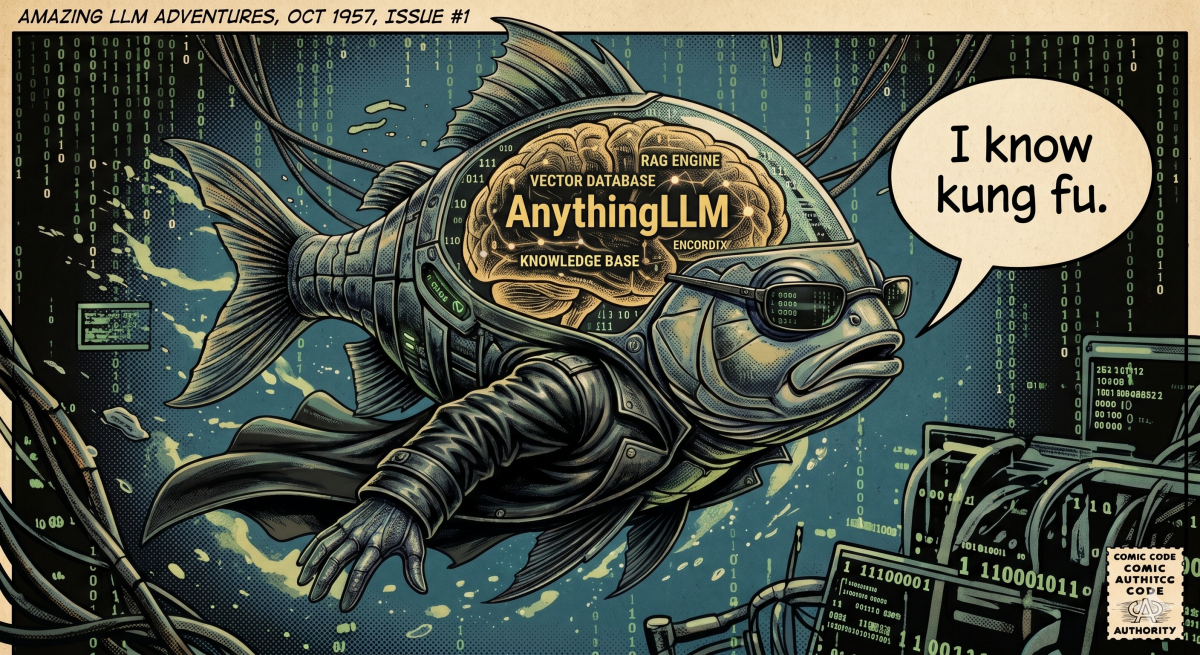
If you’re like me and have the memory of a goldfish, a generic knowledge base is incredibly useful. A place to store documents in any format, useful links, articles, and even the Jira tickets you need to work on. A knowledge base that an LLM can query and you can ask it anything. Think of it like Harry Potter’s Pensieve…
Using AnythingLLM as a local RAG knowledge base with Cursor.
LLMs are powerful but they only know what they were trained on. When you need answers grounded in your own data (internal bug trackers, product documentation, design specs) the model has no access to that context. AnythingLLM solves this by running a local RAG (Retrieval-Augmented
Generation) pipeline: you feed it your documents, it chunks and vectorizes them, and when you ask a question it retrieves the most relevant pieces and hands them to the LLM as context. Everything runs on your machine: no data
leaves your network, no cloud subscriptions, no token costs for embeddings.
Combined with Cursor’s MCP integration, it turns your private knowledge into something the AI coding agent can search in real time while it works. This post walks through deploying AnythingLLM locally with Podman, connecting
it to Cursor as an MCP server, and using it to query your own documents.
Deploy AnythingLLM with Podman.
Create the storage directoy.
AnythingLLM will run inside a container. Container filesystems are ephemeral; if you remove the container, everything inside it is gone. To keep your knowledge base across restarts, upgrades, and container recreation, you need
a directory on the host that is mounted into the container as persistent storage.
This directory is the permanent location of your database. AnythingLLM stores all of its state here: uploaded documents, the LanceDB vector index (embeddings and chunks), workspace configuration, and chat history. Choose a
path you are comfortable backing up, for example, ~/anythingllm. The same path is bind-mounted in the podman run command below which maps your host folder.
Create the environment file.
The `.env` file controls which LLM, embedding engine, and vector database. AnythingLLM uses. A minimal configuration using LM Studio as the LLM backend and the built-in embedding engine:
cat > ~/anythingllm/.env << 'EOF'
LLM_PROVIDER='lmstudio'
LMSTUDIO_BASE_PATH='http://127.0.0.1:1234/v1'
LMSTUDIO_MODEL_PREF='qwen/qwen3.5-9b'
LOCAL_AI_MODEL_TOKEN_LIMIT='40960'
EMBEDDING_ENGINE='native'
VECTOR_DB='lancedb'
STORAGE_DIR='/app/server/storage'
EOF
Key choices:
EMBEDDING_ENGINE='native': uses AnythingLLM’s built-in embedding model. No external service needed. Good enough for most use cases.VECTOR_DB='lancedb': embedded vector database, no separate process to manage.LLM_PROVIDER: the LLM used for chat. This is independent of the embedding/RAG pipeline. You can use `lmstudio`, `ollama`, `openai`, or others. For pure vector search (no chat), this is not strictly required.
Run the container and verify that is running.
export STORAGE_LOCATION=~/anythingllm
podman run -d --network host \
  --cap-add SYS_ADMIN \
  --name anythingllm \
  -v ${STORAGE_LOCATION}:/app/server/storage:Z,U \
  -v ${STORAGE_LOCATION}/.env:/app/server/.env:Z,U \
  -e STORAGE_DIR="/app/server/storage" \
  docker.io/mintplexlabs/anythingllm
As easy as this. You can check that is running in the default AnythingLLM port (3001) by doing:
curl -s http://localhost:3001/api/ping
# Expected: "pong"
Some considerations on the running command:
--network hostmakes the container listen directly onlocalhost:3001. This is the simplest setup and avoids port-mapping issues with localhost LLM backends (LM Studio, Ollama).- The
:Zsuffix on volumes is needed on SELinux-enabled systems (Fedora, RHEL) to fix the permissions blocks - The
:Usuffix tells Podman to automatically change the ownership of the host directory to match the user inside the container. - The container exposes port 3001 by default.
Generate an API key.
Once AnythingLLM is running, open http://localhost:3001 in your browser, go to Settings → API Keys, and create a new key. You’ll need this for the MCP connection and any programmatic access; in our case that will be Cursor.
Connect AnythingLLM to Cursor.
We are getting closer. Now we need Cursor to talk to AnythingLLM. That will be done through an MCP (Model Context Protocol) server. This lets the AI agent search your knowledge base directly during conversations.
At this point AnythingLLM is running and your knowledge base lives on disk under ~/anythingllm, but Cursor cannot use it yet. There are two separate gaps to bridge:
- Cursor has no native AnythingLLM integration. The agent does not know that a local RAG service exists on port 3001, which API endpoints to call, or when a question would benefit from searching your private documents.
- You cannot point Cursor at the database files directly. AnythingLLM persists state as LanceDB tables, JSON document blobs, and workspace metadata under
~/anythingllm. Those files are an internal storage format, not something an LLM can query. Semantic search only works through AnythingLLM’s HTTP API: it handles chunking, embedding, workspace scoping, and similarity ranking before returning text the model can read.
MCP is how Cursor extends the agent with external capabilities. An MCP server registers tools (anythingllm_search, anythingllm_list_documents,
and so on) that the agent can invoke during a conversation when it decides it needs more context.
The @woyo/anythingllm-mcp-server package is a small
local adapter: Cursor spawns it as a subprocess, the agent calls a tool, the server translates that into an authenticated REST request against http://localhost:3001/api, and the matching document chunks come back as structured context.
In short: AnythingLLM owns the database and the search logic; the MCP server exposes that capability to Cursor in a form the agent can discover and use automatically.
Install the MCP server.
The @woyo/anythingllm-mcp-server package bridges Cursor and AnythingLLM. Add it to your Cursor MCP configuration at ~/.cursor/mcp.json:
{
  "mcpServers": {
    "anythingllm": {
      "command": "npx",
      "args": ["-y", "@woyo/anythingllm-mcp-server"],
      "env": {
        "ANYTHINGLLM_BASE_URL": "http://localhost:3001/api",
        "ANYTHINGLLM_API_KEY": "(your-api-key)",
        "ANYTHINGLLM_WORKSPACE": "my-workspace"
      }
    }
  }
}
TIP: You don’t need to write anything. Ask Cursor to install the MCP server for AnythingLLM. It will ask where to store the MCP information (per user in ~/.cursor/mcp.json, local to the current project or a using global configuration file) and it will install the MCP server too. Provide the URL, API and default workspace to be used, seat and relax.
What this gives you.
Once connected, the Cursor agent gets access to tools like:
anythingllm_search: vector search across your knowledge base.anythingllm_upload_document: upload files into the document store.anythingllm_list_documents: list stored documents.anythingllm_list_workspaces: list available workspaces.anythingllm_create_workspace: create new workspaces.
The agent can now answer questions using your private documents as context.
Configure AnythingLLM: workspaces, documents, and RAG.
The document lifecycle.
AnythingLLM has a two-stage pipeline, and understanding it is essential:
Stage 1: Upload to the document store. When you upload a file (via the API or the web UI), AnythingLLM parses it and
extracts the text content. The result is stored as a JSON file in the document store (visible under folders like custom-documents/ or jira-bugs/). At this point the document is stored but not searchable. Think of it as a library shelf: the book is there, but there’s no index card for it.
Stage 2: Embed into a workspace. When you add a document to a workspace, AnythingLLM:
- Splits the text into chunks (typically ~1000 tokens each).
- Runs each chunk through the embedding model to produce a vector (a numerical representation of the chunk’s meaning).
- Stores these vectors in the workspace’s vector database (LanceDB).
Only after this second step can the document be found via semantic search.
Why workspaces matter.
A workspace is the RAG database. Each workspace has its own independent vector index. This gives you:
- Scoped retrieval. When you query a workspace, only documents embedded in that workspace are searched. You could have one workspace for bug reports and another for product documentation; queries stay scoped to the relevant domain, reducing noise in the results.
- Per-workspace tuning. Each workspace can have different settings:
similarityThreshold: How close a vector match must be (0.0–1.0). Lower = more results, higher = stricter. Default: 0.25.topN: How many chunks to return per query. Default: 4.chatMode: automatic (RAG + LLM), query (RAG only, no LLM generation).
Manage the knowledge base from Cursor.
Once the MCP server is connected, you can run the full document lifecycle from the Cursor chat. Describe what you want in plain language; the agent picks the matching MCP tool and calls AnythingLLM on your behalf. No curl, no API keys in the prompt, no JSON payloads.
The MCP server exposes five tools, previously mentioned: list the workspaces, create a workspace, upload a document, list the current documents and search over the embedded documents. For example, if you need a workspace for Jira tickets where to push your working information:
“I want a new workspace in AnythingLLM, if not present, called jira-tickets. I want you to upload to this workspace the following tickets (txt file with links). Then, list me all the bugs related to OVN database timeouts and DHCP problems.”